Compact 65% Wireless Keyboard: RGB, Hot-Swap, Multi-Device
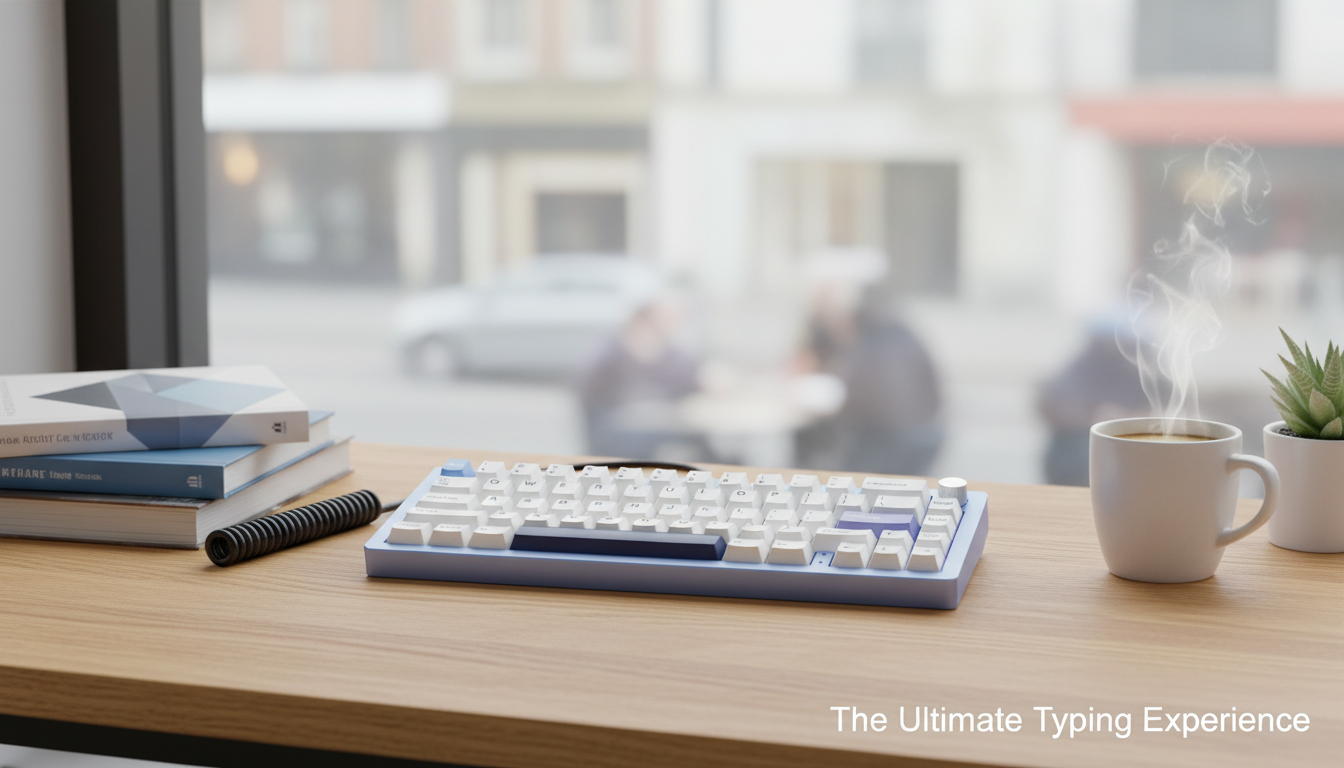
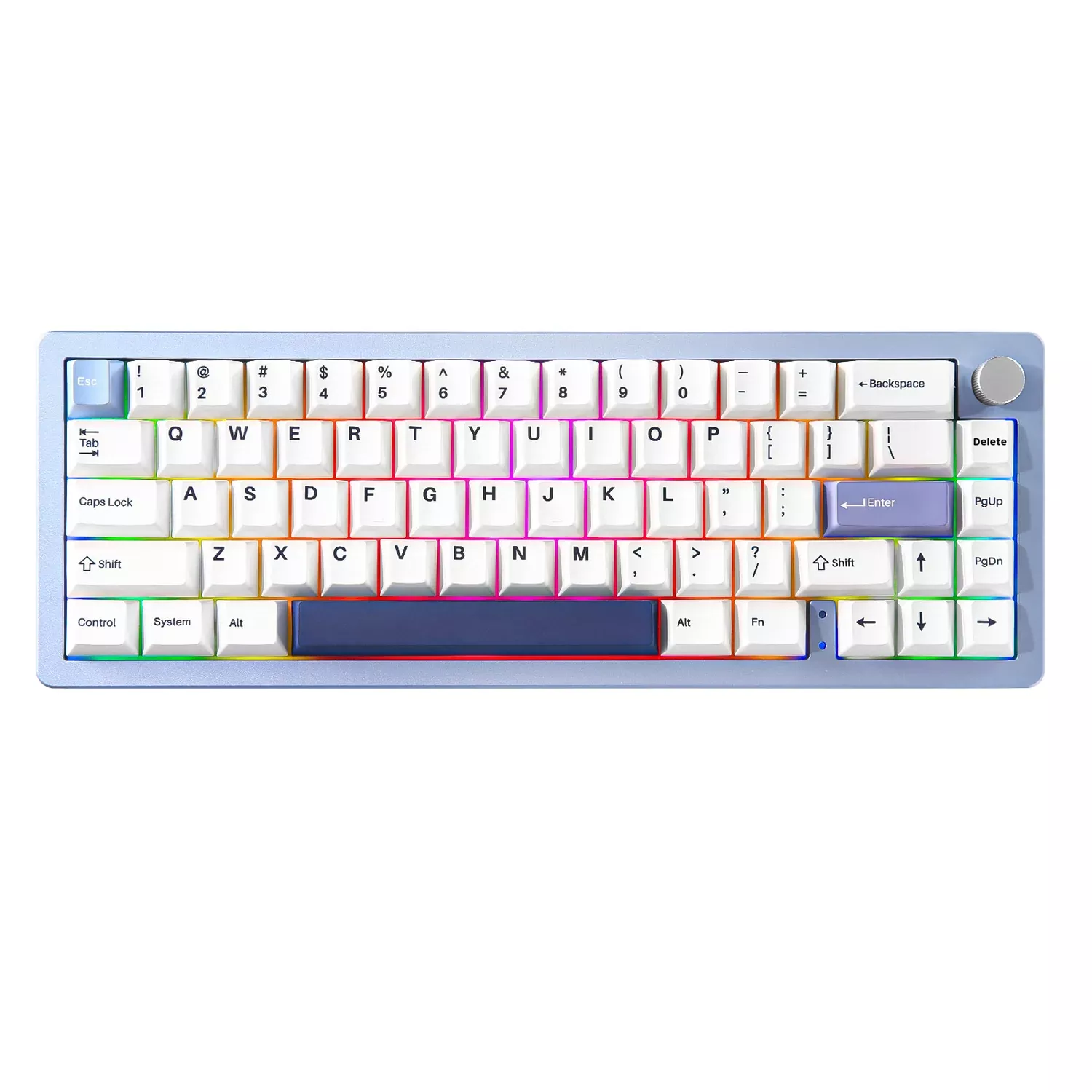
Compact 65% Wireless Mechanical Keyboard with RGB, Hot-Swap Switches, and Multi-Device Pairing
A compact 65% layout can free desk space without giving up everyday navigation keys. This wireless mechanical keyboard combines per-key RGB lighting, hot-swappable switches for easy customization, and multi-device connectivity designed for switching between a laptop, tablet, and desktop with minimal friction. If your desk (or backpack) is doing double duty for work, study, and downtime, a well-built 65% board can feel like an upgrade you notice every day.
What a 65% Layout Changes (and What It Keeps)
A 65% keyboard trims down the footprint while keeping the keys most people reach for constantly—especially arrows and a compact navigation cluster. Compared with a full-size board, the biggest win is space: less keyboard width means your mouse hand has a shorter reach, which can reduce shoulder strain over long sessions.
- Balances a smaller footprint with practical keys such as arrows and a navigation cluster commonly needed for editing and productivity.
- Creates more room for mouse movement and a cleaner travel setup while remaining familiar to full-size users.
- Best fit for shared desks and compact workstations where space and portability matter.
65% vs TKL vs Full-Size: Quick Differences
| Layout | Desk space | Dedicated function row | Arrow keys | Typical use |
|---|---|---|---|---|
| 65% | Smallest | No | Yes | Compact productivity and travel setups |
| TKL (87-key) | Medium | Yes | Yes | Work and gaming without numpad |
| Full-size | Largest | Yes | Yes | Heavy spreadsheet/numpad workflows |
Wireless + Multi-Device Connectivity for Real Switching
Wireless feels “worth it” when switching devices is fast and predictable. Multi-device pairing lets you keep a work computer, personal laptop, and tablet ready—then hop between them without re-pairing. The best experience comes from simple controls and reliable wake behavior after the keyboard sleeps.
Bluetooth behavior can vary by operating system and power settings. For deeper technical background, the Bluetooth Core Specification is the authoritative reference for how Bluetooth devices are expected to communicate.
Multi-Device Setup Checklist
| Item to verify | Why it matters | Practical tip |
|---|---|---|
| Number of paired devices supported | Determines how many devices can be ready to switch | Pair work + personal + tablet for a three-device flow |
| Switch method (keys/button) | Affects speed and reliability of switching | Prefer a consistent shortcut that works across OSes |
| Wake/reconnect behavior | Prevents delays when returning to typing | Disable aggressive OS Bluetooth power saving if reconnects lag |
Hot-Swap Switches: Custom Feel Without Soldering
Common Switch Feel Options (General Guide)
| Type | How it feels | Sound profile | Good for |
|---|---|---|---|
| Linear | Smooth, consistent press | Often quieter (depends on build) | Fast typing, gaming, shared spaces |
| Tactile | Noticeable bump mid-press | Moderate | Accuracy-focused typing |
| Clicky | Tactile + audible click | Loud | Solo environments, strong feedback preference |
RGB Lighting That’s Useful, Not Just Flashy
Practical RGB Settings to Try
| Goal | Suggested setting | Benefit |
|---|---|---|
| Longer battery life | Low brightness + static color | Keeps visibility while reducing power use |
| Shortcut awareness | Layer-based or zone color hints | Faster learning of key layers |
| Low distraction | Single-color backlight | Cleaner look for work environments |
Comfort and Build Details That Matter Daily
Compact doesn’t automatically mean comfortable; ergonomics still depends on the typing angle, case height, and how stable the board feels when you’re moving fast. If your wrists tend to float or rest on the desk edge, consider adding a wrist rest or adjusting chair/desk height. For workstation posture guidance, NIOSH’s overview on ergonomics of computer workstations is a solid, practical reference.
Comfort Quick-Checks Before Buying
| Detail | What to look for | Why it matters |
|---|---|---|
| Typing angle | Adjustable feet or comfortable fixed angle | Reduces wrist extension |
| Stabilizer feel | Minimal rattle on space/enter | Improves sound and consistency |
| Keycap material | Durable caps with clear legends | Better long-term wear and readability |
Who This Keyboard Suits Best
Fit Guide by Use Case
| Use case | Why a compact wireless hot-swap board helps | What to prioritize |
|---|---|---|
| Hybrid work | Quick switching and clean desk footprint | Reliable reconnection, comfortable angle |
| Study/coding | Arrows and nav keys remain accessible | Layer access, readable legends |
| Customization hobby | Switch swaps and lighting tweaks are central | Hot-swap support, RGB controls |
Getting Started: Setup Tips for a Smooth First Week
A little upfront setup prevents the most common annoyances: delayed reconnection, confusing device slots, and missed keys after a switch change. It also helps to know that keyboards typically appear to devices as a Human Interface Device (HID); the USB HID class overview explains the basic idea behind standardized keyboard input.
First-Week Checklist
| Task | When to do it | Outcome |
|---|---|---|
| Pair all devices and confirm switching | Day 1 | No surprises during meetings or commutes |
| Tune RGB brightness and timeout | Day 1–2 | Better battery life and less distraction |
| Verify all keys after any modifications | After each swap | Reliable input and consistent feel |
Available Now
- Compact 65% Wireless Mechanical Keyboard with RGB, Hot Swap & Multi-Device Connectivity — $171.01
- Minimalist Loose Pleated Suit Pants — $58.80
- Women’s Summer Pleated Linen Tank Top — $42.51
FAQ
Does a 65% keyboard still have arrow keys?
Most 65% layouts include a dedicated arrow cluster plus a small navigation column, which keeps common editing movements convenient. Keys that are missing (like a function row) are typically accessed through a function layer.
What does hot-swap mean on a mechanical keyboard?
Hot-swap means the switches can be removed and replaced without soldering, making it easier to change how the keyboard feels and sounds. Power the keyboard off before swapping and insert switches carefully to avoid bending pins; compatibility depends on the socket and switch type.
How does multi-device switching work on a wireless keyboard?
You pair the keyboard with multiple devices, then switch between them using a dedicated button or a key shortcut. If switching feels slow, check Bluetooth power-saving settings and sleep timers on the connected devices, since those can delay reconnection.










Leave a comment